Problems related to Astrometrica
Here you will find a list of problems related to the use of the Astrometrica software, which is the tool used to analyze images and identify asteroids. If you are facing any issue related to the use of Astrometrica, such as calibration errors, file and path errors, difficulties marking objects, or any other software-related issue, check the solutions below.
The software is asking for a license
Astrometrica is free software, but you need to obtain a license in order to use it. To do this, follow the instructions described in the Installing Astrometrica section of the practical tutorial, where there is a detailed step-by-step explanation of how to find the license and configure the software to use it. If the problem persists, contact the support team for assistance.
Runtime error when opening the software
Press Windows + R to open the Windows Run dialog. Type %LOCALAPPDATA% and click OK.
This should open the user's local data folder. Inside it, there must be a folder called Astrometrica. If this folder does not exist, create a folder with that exact name and try opening Astrometrica again.
⚠️ Any typo in the folder name may cause the error, so make sure the folder name is exactly as shown, with an uppercase "A" and no extra spaces.
Calibration error (Data reduction)
This is the stage where the most errors are reported, so there are several possible solutions. In order of simplicity, try the following:
Reference Star Match Error
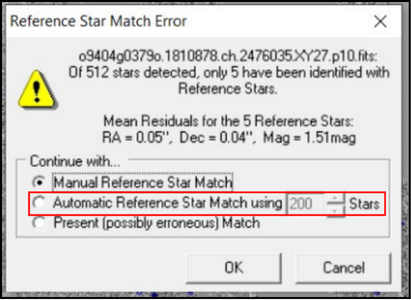
- If the error is the same as the one shown in the image below, Reference Star Match Error, simply select the middle option to try an alternative calibration. If that does not work, try the other solutions listed here.
-
Check whether the software settings are correct by following the instructions described in the Initial setup section of the tutorial. If the settings are incorrect, the software may not be able to perform the calibration properly, which can generate errors. Make sure the correct configuration file is selected for the image you are analyzing, that is, PS1.cfg for PS1 images and PS2.cfg for PS2 images.
-
In the software settings, in the Internet tab, try changing the Vizier Server option to a different one from the currently selected server. Astrometrica uses the Vizier service to perform calibration, and sometimes there may be connection issues with a specific server. Trying another option may solve the problem, so test them one by one.
No Reference Start Recoreds read.
-
In the software settings, in the Internet tab, try changing the Vizier Server option to a different one from the currently selected server. Astrometrica uses the Vizier service to perform calibration, and sometimes there may be connection issues with a specific server. Trying another option may solve the problem, so test them one by one.
-
Close the software and try opening it again. Check whether the black window that opens shows any error message related to downloading MPCORB data. If there is any error, contact the support team.
I/O-error 3 writing Astrometrica/Data/MPCReport.txt
-
This error usually indicates a write permission problem in the folder where Astrometrica is installed. To solve this, try running Astrometrica as administrator. To do this, right-click the Astrometrica shortcut and select "Run as administrator". If this solves the problem, it is recommended to change the folder permissions so that you do not need to run it as administrator every time.
-
Check the path where Astrometrica is installed, as indicated in the error message itself, and verify whether there is a folder called Data. If this folder does not exist, create a folder with that name in the indicated location and try performing the calibration again.
I removed toolbar icons and do not know how to restore them
- At the top of the software, click Windows and make sure the last 5 options are enabled.